Photocollage System
Michelle Li
Course page: http://www.dgp.toronto.edu/~karan/courses/csc491/fall_2004/
Professor: Karan Singh
|
|
Photocollage SystemMichelle LiCourse page: http://www.dgp.toronto.edu/~karan/courses/csc491/fall_2004/ |
IntroductionDesignPrototypeUsabilityPresentationConclusionsReferences |
DesignUser InterfaceThe Photocollage System interface is extremely simple and easy to use, minimizing user navigation through the application. The application window is divided into five areas: menu bar, scrapbox, canvas, automation controls, and the toolbox. The menu bar contains menus for performing tasks typical in most applications, such as opening and saving files. Upon opening or saving files, the user is presented with a file dialogue configured to show only file types supported in the application - images and photocollage sessions. Selecting an image displays a preview thumbnail. The Images menu contains commands for applying global changes within the canvas or scrapbox. The scrapbox holds a collection of images loaded by the user to be incorporated in a photocollage creation, while the canvas is the main workspace for organizing and manipulating collage pieces to produce a photocollage. Automation controls located beneath the scrapbox allow the user to adjust the degree of randomness (in image orientation, scale, and selection) applied to a photocollage automatically generated by the application. The toolbox sits underneath the canvas and provides 12 tools for the user to apply on images in the canvas. User InteractionPhotocollages can be created either automatically or manually. Photocollage automation randomly selects pieces from the loaded thumbnails in the scrapbox and organizes them on the canvas according to the different degrees of randomness specified by the user. In order for the resulting collage to make visual sense to the user, it is assumed that the series of photographs in the scrapbox are all of the same object taken from different perspectives. With each click on the Auto Collage button, the user can generate a new photocollage in the canvas. Any particular pieces that the user wishes to retain in the next automated generation can be selected and "frozen". These pieces remain static on the canvas until they are "unfrozen". To manually create a collage, the user can drag & drop pieces from the scrapbox images onto the canvas. The thumbnail images are sliced according to pre-defined grid specifications that may be adjusted in the Image menu. A user may select a scrapbox piece to drag & drop into the canvas. In both the automatic and manual modes, pieces in the canvas can be manipulated by the toolbox tools. While most of the tools are quite straightforward to understand, the Hide/Reveal tool is unique and requires some explanation. When a user chooses this tool, the selected image piece is treated as a window. Its corners may be moved to hide or reveal parts of the whole image from which the collage piece originated. 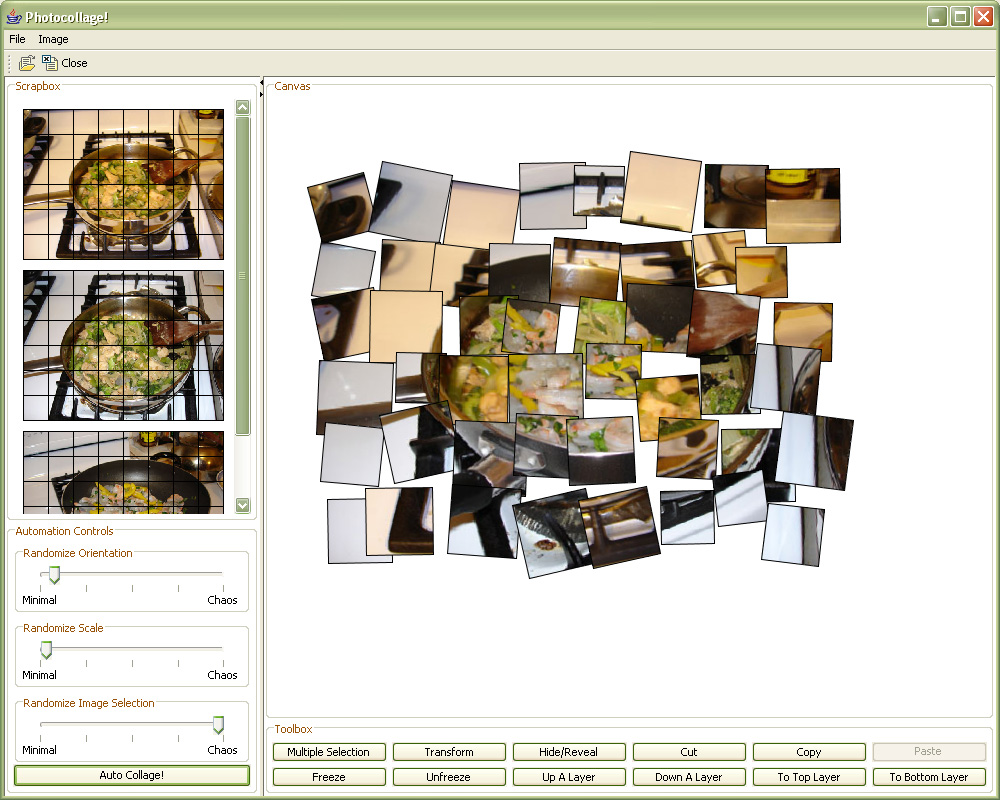 |